Should I set the "Erase local data setting" to yes or no?

Chrome URLs (typed in browser on Chromebook - anyone)
Reload policies and see what policies are set for current user (learned from +Peter Edwards)
type chrome://policy return, click reload policies button top left. Shows a lot of information (cool)
type chrome://chrome-urls will give you a full list of what is available
Search and list all devices at once
If you have your devices in several different organizations it's kind of annoying not being able to see them all at once, paging through. This way you can list all devices and see the Org Unit that it's in.- Click the Devices tab
- Click on your root Org Unit
- Check the "Search all organizations" check box
You can search in all Chromebook device fields and for multiple fields and more!
I thought you could only search for Serial Numbers (because it was right above that column). Well duh, you can search any of the following fields: Serial Number, Status, Last Sync, Support End Date, User, Location, Notes.
Search within a specific field:
user:mebenson where "user" is the field name and "mebenson" is the search parameter
Searching for multiple fields:

Learn more about searching within the Devices section.
Set different Chrome Store home pages for users
You have the ability to display different Chrome Store home pages with different recommended extensions and plugins per User Org.
For example, if you wanted to have the Chrome Store home page to list a bunch a Chrome extensions that an 8th grader would want to install but you don't want those same set of extensions to show up as recommended ones for a 12th grader, you can.
How To:
- Your Orgs must be set up per grad year (grade level) or they must be structured in a way that allows for you to group the set of users so they all would have the same recommended apps.
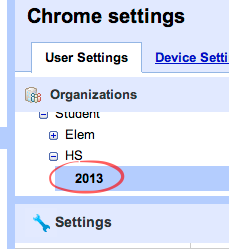
- Go to Settings, Chrome and stay on the User Settings tab.
- Select a User Org
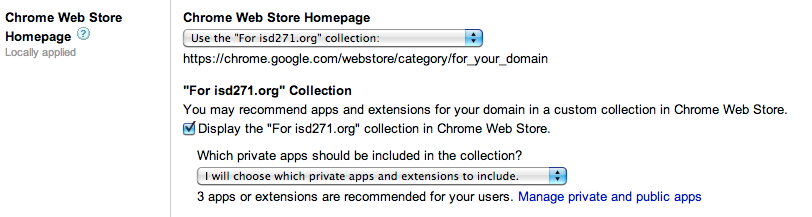
- Scroll down to Chrome Web Store Homepage section
- Select: "Use the "For your domain" collection:" from the drop down menu
- Check "Display the "For your domain" collection in Chrome Web Store"
- Click "Manage private and public apps" to set the recommended apps
No comments:
Post a Comment